Wednesday, June 19, 2013

ADF Mobile Push Notifications With Google Cloud Messaging (GCM) Part 2

Server Side Code Implementation Using PHP

In this tutorial I have used PHP as server side programming language and MySQL database to store data. Since sending message from PHP to GCM is easy, here we'll be using CURL to create a message request to send for Google GCM server. CURL is a library that lets you make HTTP requests in PHP.

You can download the workspace from here. Extract the file to public html folder and modify the PHP files code as shown in below section to make PHP application work.

Open the config.php and enter the Mysql sever details where your Mysql DB is installed. Also change the Google API Key associated with Google project. Create the gcm_users table in the database, gcm_users.sql script is located in etc folder.


Developed the SOAP based Web service to receive device token/ registration id from ADF mobile and store that in Mysql database. Here I have used NuSOAP to create webservice, NuSOAP is a rewrite of SOAPx4, provided by NuSphere and Dietrich Ayala. It is a set of PHP classes - no PHP extensions required - that allow developers to create and consume web services based on SOAP 1.1, WSDL 1.1 and HTTP 1.0/1.1

Open the http://hostname/GcmService.php in browser, you can see the gcmService as showed below.


Clicking on the WSDL link will loads the Webservice WSDL URL - "http://hostname/GcmService.php?wsdl", which will be used in the ADF Mobile Push Notifications With Google Cloud Messaging (GCM) Part 1 to create Web service data control to send data back to provider application server.

Open the http://hostname/index.php in the browser, page loads with no devices is registered. 


Push Notification provides a channel to push notifications to clients, and the notification payload can contain some limited set of parameter-value pairs that can be parsed by the ADF Mobile app, when you click on the   notification message. In this example I am sending the payload as

"$message = array("alert" => $message, 'sound' => 'default', 'customMessage' => $customMessage);"

You can alter the payload in send_message.php. Once the users registered with GCM,  http://hostname/index.php screen will looks as below.


Now you can send the Push Notification message to registered users.

ADF Mobile Push Notifications With Google Cloud Messaging (GCM) Part 1

Oracle ADF Mobile 11.1.2.4 release adds the Push Notification Support,  now ADF Mobile application can register to receive notifications through both the Apple and Google notification services. In this article I try to explain on how to implement “Google Cloud Messaging for Android (GCM) with ADF Mobile, GCM is a service that helps developers to send data from servers to their Android applications on Android devices“.

Thanks to Joe Haung his article helped me to understand the implementation of ADF Mobile with push notification.    

Below diagram illustrates the overview working concept of ADF Mobile with Push Notification support.


[Runs with Oracle JDeveloper 11.1.2.4.0].

Registering with Google Cloud Messaging
  • Open Google APIs Console page and create a new project. (If you haven’t created already otherwise it will take you to dashboard). 
  • After creating project, click on Overview tab. Note down the Project Number which will be used as Sender Id / Authorization Id in ADF Mobile application
  • Click on Services tab on the left panel and turn on Google Cloud Messaging for Android.
  • Once you are done, click on API Access and note down the API Key. This API key will be used when sending requests to GCM server.

ADF Mobile Implementation Steps

Create an ADF Mobile application, In the application controller project, register an application lifecycle event listener (ALCL) class. Open the Application Resources -> Descriptors -> ADF META-INF -> adfmf-application.xml, click on the LifeCycle Event Listener search icon and added “application.LifeCycleListenerImpl”.


Open the LifeCycleListenerImpl class and implement the oracle.adfmf.application.PushNotificationConfig interface. This interface provides the registration configuration for push notifications. Override and implement the getNotificationStyle and getSourceAuthorizationID methods of the PushNotificationConfig interface. LifeCycleListenerImpl java class looks like below.
public class LifeCycleListenerImpl implements LifeCycleListener, PushNotificationConfig {
    public LifeCycleListenerImpl() {
    }
  
    public long getNotificationStyle() {
        return 0L;
    }

    public String getSourceAuthorizationId() {
        return null;
    }
  
    public void start() {
       // Add code here...
    }

    public void stop() {
        // Add code here...
    }

    public void activate() {
        // Add code here...
    }

    public void deactivate() {
        // Add code here...
    }
} 
In the application controller project, create a push notification listener class (for example, NativePushNotificationListener) that handles push notification events. This class must implement the oracle.adfmf.framework.event.EventListener interface that defines an event listener.
public class NativePushNotificationListener implements EventListener {

    public NativePushNotificationListener() {
        super();
    }

    public void onMessage(Event event) {
        //Parsing the payload JSON string
        JSONBeanSerializationHelper jsonHelper = new JSONBeanSerializationHelper();
        try {
            PayloadServiceResponse serviceResponse =
                (PayloadServiceResponse)jsonHelper.fromJSON(PayloadServiceResponse.class, event.getPayload());
            //Can access the variables like below
            serviceResponse.getCustomMessage();
            // To do 
        } catch (Exception e) {
            e.printStackTrace();

        }
    }

    public void onError(AdfException adfException) {
    }

    public void onOpen(String string) {
        // Storing the regisration id send by GCM server in #{applicationScope.deviceToken} for further usage
        ValueExpression ve = AdfmfJavaUtilities.getValueExpression("#{applicationScope.deviceToken}", String.class);
        ve.setValue(AdfmfJavaUtilities.getAdfELContext(), string);
    }
}
Create a PayloadServiceResponse.java class and add the below code.
public class PayloadServiceResponse {
    private double from;
    private String collapse_key;
    private String customMessage;
    private String sound;
    private String alert;

    public void setFrom(double from) {
        this.from = from;
    }

    public double getFrom() {
        return from;
    }

    public void setCollapse_key(String collapse_key) {
        this.collapse_key = collapse_key;
    }

    public String getCollapse_key() {
        return collapse_key;
    }

    public void setCustomMessage(String customMessage) {
        this.customMessage = customMessage;
    }

    public String getCustomMessage() {
        return customMessage;
    }

    public void setSound(String sound) {
        this.sound = sound;
    }

    public String getSound() {
        return sound;
    }

    public void setAlert(String alert) {
        this.alert = alert;
    }

    public String getAlert() {
        return alert;
    }
}
Open the LifeCycleListenerImpl class and modify the below method code as followed.
public void start() {
        //Create an EventSource object that represents the source of a native push notification event:
        EventSource evtSource =
            EventSourceFactory.getEventSource(NativePushNotificationEventSource.NATIVE_PUSH_NOTIFICATION_REMOTE_EVENT_SOURCE_NAME);
        //Create and add an object of the push notification listener class to the event source
        evtSource.addListener(new NativePushNotificationListener());
    }
   
   public long getNotificationStyle() {
        return 0L;
    }

    public String getSourceAuthorizationId() {
        //Here AuthorizationId is the "Sender Id" of Google project created earlier
        String senderId = "765350429141";
        ValueExpression ve = AdfmfJavaUtilities.getValueExpression("#{applicationScope.applicationId}", String.class);
        ve.setValue(AdfmfJavaUtilities.getAdfELContext(), senderId);
        return senderId;
    } 
In the application controller project, click on new gallery expand the General - Data Control nodes and select Webservice Service Data Control. Refer to the ADF Mobile Push Notifications With Google Cloud Messaging (GCM) Part 2, set the server side code to access http://hostname/GCMService.php?wsdl


In the Create Web Service Data Control - Step 2 of 5 wizard, move the persistGCMUser from available to selected and click on Finish.


In ViewController project. Locate and expand the Application Sources folder, then expand the META-INF folder. You will see the adfmf-feature.xml file, click on the adfmf-feature.xml file to launch the Feature editor. Add a new feature by clicking the green plus sign on the Features table near top of the editor this will launch the new Create ADF Mobile Feature dialog, modify the values as shown below.


In the Features table, select the newly created feature SaveDeviceToken. Under the Features table, click the Content tab, and locate the Content table. Notice that the content item SaveDeviceToken.1 is created by default. Next add a new file by clicking the green plus sign and select ADF Mobile AMX Page option, this will launch the new Create ADF Mobile AMX Page, modify the File Name as "SaveDeviceToken.amx".

From Data Control palette drag and drop GCMService->persistGCMUser_parameters->gcmUser as ADF Mobile Form and  GCMService->persistGCMUser as ADF Mobile button as shown below.


In SaveDeviceToken.amx page,  create a managed bean with action listener method (name as executePersistGCMUser) and map to  persistGCMuser button action listener.


Open the SaveDeviceToken.amx and modify the page with below code.
<?xml version="1.0" encoding="UTF-8" ?>
<amx:view xmlns:xsi="http://www.w3.org/2001/XMLSchema-instance" xmlns:amx="http://xmlns.oracle.com/adf/mf/amx"
          xmlns:dvtm="http://xmlns.oracle.com/adf/mf/amx/dvt">
    <amx:panelPage id="pp1">
        <amx:facet name="header">
            <amx:outputText value="Save Device Token" id="ot1"/>
        </amx:facet>
        <amx:panelFormLayout id="pfl1">
            <amx:inputText value="#{bindings.username.inputValue}" label="#{bindings.username.hints.label}" id="it4"/>
            <amx:inputText value="#{bindings.email.inputValue}" label="#{bindings.email.hints.label}" id="it3"/>
            <amx:panelLabelAndMessage label="GCM Device Token" id="plam1">
                <amx:outputText value="#{applicationScope.deviceToken}" id="ot3"/>
            </amx:panelLabelAndMessage>
        </amx:panelFormLayout>
        <amx:commandButton actionListener="#{SaveDeviceTokenBean.executePersistGCMUser}" text="Save GCM User"
                           disabled="#{!bindings.persistGCMUser.enabled}" id="cb1">
            <amx:setPropertyListener id="spl1" from="#{applicationScope.applicationId}"
                                     to="#{bindings.applicationId.inputValue}" type="action"/>
            <amx:setPropertyListener id="spl2" from="#{deviceScope.device.os}" to="#{bindings.deviceType.inputValue}"
                                     type="action"/>
            <amx:setPropertyListener id="spl3" from="#{applicationScope.deviceToken}"
                                     to="#{bindings.deviceToken.inputValue}" type="action"/>
        </amx:commandButton>
    </amx:panelPage>
</amx:view>

Open the SaveDeviceTokenBean.java class and modify the executePersistGCMUser as shown below.
public void executePersistGCMUser(ActionEvent actionEvent) {
        MethodExpression me =
            AdfmfJavaUtilities.getMethodExpression("#{bindings.persistGCMUser.execute}", Object.class,
                                                   new Class[] { });
        me.invoke(AdfmfJavaUtilities.getAdfELContext(), new Object[] { });
        //Navigate to the Tasks feature
        AdfmfContainerUtilities.gotoFeature("Tasks");
    }
SaveDeviceToken.amx preview looks as below.


Open on the adfmf-feature.xml file to launch the Feature editor. Add a new feature by clicking the green plus sign on the Features table near top of the editor this will launch the new Create ADF Mobile Feature dialog, modify the values as shown below.


In the Features table, select the newly created feature Tasks. Under the Features table, click the Content tab, and locate the Content table. Notice that the content item Tasks.1 is created by default. Next add a new file by clicking the green plus sign and select ADF Mobile AMX Page option, this will launch the new Create ADF Mobile AMX Page, modify the File Name as "TasksIndexPage.amx". Page preview looks like below.


Deployed and tested the Push Notification support on both Android Device/Emulator and work's fine. If your are running the application on the emulator make sure you select target as Google APIs while creating the Android Virtual Device.


Click on the Settings icon in the emulator and go to ACCOUNTS section. Add the Google account, so that C2DM configure with Gmail account for mapping a unique device.


Application screen looks like below when it run on Android Device/Emulator. At this stage the application would initiate a registration request with push notification services, after successful registration, GCM server issues registration id back to the android device that would uniquely identify the ADF Mobile application and the device.  Note in the first screen GCM Device Token is displayed after successful registration.


Enter form details and click save button to send back the data to application provider server, also navigates to Tasks Details screen.


Handling Push Notifications
  • The ADF Mobile application is installed, but not running and ADF Mobile application is running in the background - In both the cases notification the notification message displays with the registered notification style (none, banner, or alert). When the user taps the message (if its a banner-style notification) or touches the action button (if the message appears as an alert), the ADF Mobile application launches, invoking the application notification handlers. 
  • The ADF Mobile application is running in the foreground - No notification message displays. The application notification handlers are invoked.
Open the http://hostname in the browser will load the index.php page and displays devices which are registered and send the message.


Refer the ADF Mobile Push Notifications With Google Cloud Messaging (GCM) Part 2, how to set the server side code to access http://hostname/index.php and send message from sever side to GCM. Once the message is sent you can see the notification in both Device/Emulator as shown below.


In the NativePushNotificationListener class - onMessage method load, you can parse the event payload and invoke additional application logic accordingly. Below is the example how the payload looks when you run in the debug mode. You can refer to NativePushNotificationListener class I have showed how to parse the payload. 


[Runs with Oracle JDeveloper 11.1.2.4.0].

Monday, June 10, 2013

Offline Data Synchronization for ADF Mobile

In Mobile applications very desired feature is able to work offline. For data-driven applications, it means user can store (a subset of) the application data locally, and implement a data synchronization mechanism that keeps your local and server data in sync.

In work offline scenario user need not connect to the internet always, but needs to collect data (offline) for later submission. Another usage can be an offline cache on the client for faster data access and also preserve network bandwidth.

In this article we will create an ADF Mobile application with offline capability, here user can add/modify the data and store it in persistent local database. Every once in a while we push all the added/modified data to the server using SOAP based WebService to sync online data.

Architecture Diagram


Note: - 
  • WebServices exposed are based on EJB.
  • Current implementation supports unidirectional (client to server) synchronize from Local DB to Server DB. 
Workflow
  1. Data Initialization - When the application loads for the first time, required data will be pulled from Local DB to Server DB. In this demo application I'm pulling all departments detail to Local DB, so that sample departments detail can be displayed on application load.
  2. Auto Sync - User can add/modify the data and click on save button, here first step is to save data into Local DB then check for the synchronization settings preferences. If Auto Sync is enabled then check for the network connection is available, if yes push the current request data to the Server DB.
  3. Manual Sync - Next is to turn it into an app that is able to run offline, without network connection present, user can go to synchronization settings preferences and disable the Auto Sync, so that data will be stored and cached locally for faster access and also preserve network bandwidth. Once in a while push all the added/modified data to Server DB from Local DB.
Application screen looks like below when it is deployed and run on the Android Device/Emulator. As soon application starts it will bring the "Data Initialization Screen", click on "Start Data Initialization" button then required data will be populated from Server DB to Local DB using SOAP services.


Above screen will appear only when application start for the first time, once the data initialization completes it will navigates automatically to Dept List screen.


Click on the menu button, this will launch the Navigation Bar with Preferences, Hide Navigation and Springboard options. Click on Preferences icon.


Synchronization Settings
  • If Auto Sync is checked, when ever user perform CRUD operations the data will be first saved to the local db and immediately check the network connection, if connection exists send the current request data to the Server DB.
  • If Auto Sync is unchecked, when ever user perform CRUD operations the data will be first saved to the local db and current request data will not be send to Server DB.
From Dept List screen click on add button to add the new record. Enter the details and click on Save button to submit the data, newly added records appears on Dept List screen.


Clicking on any department will take you to the selected Department details page, click on the edit button to  edit the details, modify the details and click on the Save button to submit the data and navigate back to detail screen. Clicking on delete button will delete the current department.


From main screen clicking on the Sync button will first check the network connection, if connection not exists alert notification will be displayed on the screen and synchronization of data will not happen.


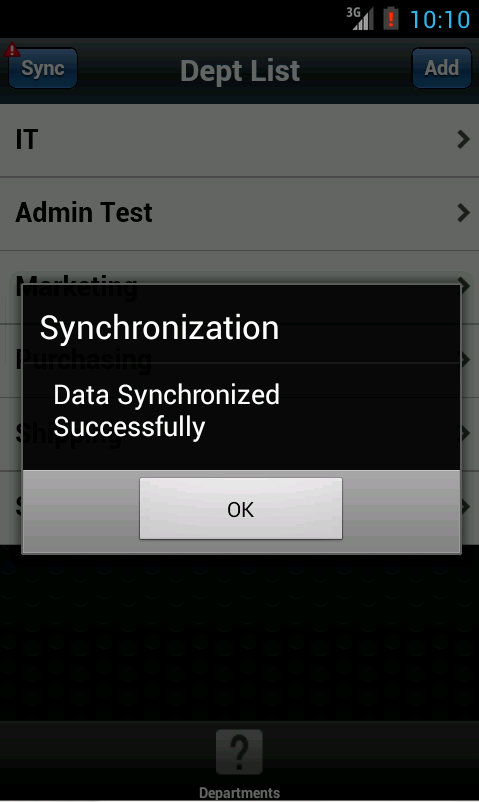
So after enabling the connection, click on Sync button to send all the new/modified data to Server DB from Local DB, once the synchronization completes alert notification will be displayed on the screen.


You can download the sample workspace from here, sample workspace contains both EJBSyncWebServiceApp and SyncMobileApp applications.
[Runs with Oracle JDeveloper 11.1.2.4.0]

In below section I will not provide all the steps to create the application from scratch, only key ones will be explained. 

EJBSyncWebServiceApp - If you are deploying application to standalone server, modify the application with following steps:
  1. Create the DataSource in standalone server and name as "MobiledemoDS".
  2. Open the persistence.xml and modify the string "java:/app/jdbc/jdbc/MobiledemoDS" to "jdbc/MobiledemoDS" in jta-data-source and property tag.
  3. Right click on the Application navigator and select application properties and go to Deployment->Weblogic, there uncheck "Auto Generate and Synchronize WebLogic JDBC Descriptors During Deployment"option
SyncMobileApp - 
  1. Following DataControls are created in application. 
    • DepartmentsDC -  Consists of methods to cache and store the data locally
    • EJBServiceWSDC -  Consists of methods to access remote server data 
    • SynchronizationDC -  Consists of methods to synchronize data from offline to online 
  2. In connections.xml provide the path where EJBSyncWebServiceApp Webservices is deployed.
  3. Used "navigator.network.connection.type" cordova api to check the active network connection that is being used. This property is a fast way to determine the device's network connection state, and type of connection.

Thursday, May 30, 2013

Problematic while calling WebService Data Control in LifeCycleListenerImpl on application start

In this article I wants to share the issue faced while working on sample online/offline data synchronization application. Here I wanted to populate user related data from online to offline database(SQLite db) on application start, so that offline data can be used across the feature. I assumed that it can be done when the ApplicationController initialized by the LifeCycleListenerImpl and call web service data control programmatic way using AdfmfJavaUtilities.invokeDataControlMethod.

I have created the data control in ApplicationController project, since I need to call the web service data control in LifeCycleListenerImpl. My assumption went wrong, I noticed when application run in debug mode, web service data control will not be called at all in LifeCycleListenerImpl. Because AdfmfJavaUtilities.invokeDataControlMethod requires DataBindings.cpx with Data Control Name entry in Data Control Usages section. But DataBindings.cpx will be created in ViewController project.

In one of forum entry as explained by Denis Tyrell and Chris Muir, above approach will not work when we have Secured Web Service, since the login page won't be displayed yet and we won't have the credentials to use for the Web Service.

Sometime you may also hit the error while using AdfmfJavaUtilities.invokeDataControlMethod - "[SEVERE - oracle.adfmf.framework - AmxBindingContext - loadDataControlById] Unable to load Data Control testDataControl due to following error: ERROR [oracle.adfmf.framework.exception.AdfException] - Unable to load definition for testDataControl".

Make sure you have a data control name entry in DataBindings.cpx as shown below.

Sunday, May 19, 2013

ADF Mobile With EJB Restful Web Service

This article is the continuation of my previous article on Configuring EJB with Restful Web Service in ADF. Here will see how to integrate EJB Restful Web Service with ADF mobile.

Application screen looks like below when it is deployed and run on the Android Device/Emulator. In the below screen Department list will be displayed.


Clicking on any department will take you to the selected Department details page, edit the details and click on the Save button to submit the data. Clicking on delete button will delete the current department.


From Department List screen, click on add button to add the new record. Enter the details and click on Save button to submit the data.


After the below actions, updated department result page will be displayed as shown below.


You can download the sample workspace from here
[Runs with Oracle JDeveloper 11.1.2.4.0 + HR Schema]

Implementation Steps

Create an ADF Mobile Application, the application consists of two projects. Application Controller project of Application LifeCycle, Listeners, Device Features DataControl and ViewController project contains mobile features content like AMX Files, Task Flows and DataControl.

In Application Controller project, create a Departments.java file and add the below code.
public class Departments {
    private BigDecimal departmentId;
    private String departmentName;
    private BigDecimal locationId;
    private BigDecimal managerId;

    public Departments() {
        super();
    }

    public Departments(BigDecimal departmentId, String departmentName, BigDecimal locationId, BigDecimal managerId) {
        this.departmentId = departmentId;
        this.departmentName = departmentName;
        this.locationId = locationId;
        this.managerId = managerId;
    }

    public void setDepartmentId(BigDecimal departmentId) {
        this.departmentId = departmentId;
    }

    public BigDecimal getDepartmentId() {
        return departmentId;
    }

    public void setDepartmentName(String departmentName) {
        this.departmentName = departmentName;
    }

    public String getDepartmentName() {
        return departmentName;
    }

    public void setLocationId(BigDecimal locationId) {
        this.locationId = locationId;
    }

    public BigDecimal getLocationId() {
        return locationId;
    }

    public void setManagerId(BigDecimal managerId) {
        this.managerId = managerId;
    }

    public BigDecimal getManagerId() {
        return managerId;
    }
}
Create DepartmentsDC.java file and add the below code, create DataControl based on DepartmentsDC file
public class DepartmentsDC {
    public DepartmentsDC() {
        super();
    }

    public Departments ediDepartment(BigDecimal departmentId, String departmentName, BigDecimal locationId,
                                     BigDecimal managerId) {
        return new Departments(departmentId, departmentName, locationId, managerId);
    }

    public Departments addDepartment() {
        BigDecimal defaultVal = new BigDecimal("0");
        return new Departments(defaultVal, "", defaultVal, defaultVal);
    }
}
In the New Gallery expand the General - XML nodes and select XML Schema and click OK, enter Departments.xsd in File Name field and the following attributes as shown in below image.


In the New Gallery expand the General - Connection nodes and select URL Connection and click OK, enter the URL Endpoint details, You can download Configuring EJB with Restful Web Service in ADF from my previous article.


Note: - Next create a URL Service Data Control from - http://IpAddress:7101/EJBRestService/jersey/EJBRESTService api with HTTP Methods: GET, PUT, POST, DELETE.

In the New Gallery expand the General - Data Control nodes and select URL Service Data Control and click OK and enter the details to create the GET method


In the New Gallery expand the General - Data Control nodes and select URL Service Data Control and click OK and enter the details to create the POST method.


In Create URL Service Data Control wizard - step 3 of 5, specify the XSD url which we created earlier.


In the New Gallery expand the General - Data Control nodes and select URL Service Data Control and click OK and enter the details to create the PUT method.


In Create URL Service Data Control wizard - step 3 of 5, specify the XSD url which we created earlier.


In the New Gallery expand the General - Data Control nodes and select URL Service Data Control and click OK and enter the details to create the DELETE method.


In Create URL Service Data Control wizard - step 3 of 5, enter the departmentId value as 0.


Next open the DataControls.dcx file and change the Definition id values to looks like below.


In ViewController project. Locate and expand the Application Sources folder, then expand the META-INF folder. You will see the adfmf-feature.xml file, click on the adfmf-feature.xml file to launch the Feature editor. Add a new feature by clicking the green plus sign on the Features table near top of the editor this will launch the new Create ADF Mobile Feature dialog, modify the values as shown below.


In the Features table, select the newly created feature Departments. Under the Features table, click the Content tab, and locate the Content table. Notice that the content item Departments.1 is created by default. Next add a new file by clicking the green plus sign and select taskflow option, this will launch the new Create ADF Mobile Task Flow dialog, modify the value as shown below.


Click on the DepartmentsTaskflow.xml to open the file in taskflow editor and follow the below steps.
  • Create three views and name them as deptList, deptAdd and deptEdit respectively
  • Draw the control flow case from deptList to addDept and Outcome as "add"
  • Draw the control flow case from deptList to editDept and Outcome as "edit" 
  • From DataControl palette drag and drop getDepartmentsFindAll and drop as method-call
  • Draw the control flow case from getDepartmentsFindAll method-call to deptList and Outcome as "getDepartmentsFindAll"
  • Draw the control flow case from addDept to getDepartmentsFindAll method-call and Outcome as "list"
  • Draw the control flow case from editDept to getDepartmentsFindAll method-call and Outcome as "list"
DepartmentsTaskflow.xml will looks as shown below diagram.


Double click on deptList view will launch Create ADF Mobile AMX Page dialog, in page facets select Header and Secondary Action. Go to source tab and follow the below steps:
  • In Header facet, amx:outputText set the value as "Dept List"
  • In Secondary Action facet, for amx:commandButton modify the values text: Add, action: add
  • From DC palette drag and drop EJBService->getDepartmentsFindAll()->Return->departmentss->departments->ADF Mobile List View and select the default options
  • In amx:Item, set the action as "edit"
  • Inside amx:Item set the setPropertyListener as shown below

Note:- Created the DataControl DepartmentsDC with addDepartment and editDepartment methods, so that the type casting the ADF form values to departments object will be easy.

Double click on deptAdd view will launch Create ADF Mobile AMX Page dialog, in page facets select Header, Primary Action. Go to source tab and follow the below steps:
  • In Header facet, amx:outputText set the value as "Add Dept"
  • In Primary Action facet, for amx:commandButton modify the values text: Back, action: __back
  • From DC palette drag and drop DepartmentsDC->addDepartment->Departments->Form as ADF Mobile Form.
  • Go to bindings and add the following attributesValues, departmentId, departmentName, locationId, managerId as shown below.
  • From DC palette drag and drop postDepartments->Method as ADF Mobile Button, set name as "Save", action as "list" and set the setPropertyListener as shown below 

Double click on deptAdd view will launch Create ADF Mobile AMX Page dialog, in page facets select Header, Primary, Secondary Action. Go to source tab and follow the below steps:
  • In Header facet, amx:outputText set the value as "Edit Dept"
  • In Primary Action facet, for amx:commandButton modify the values text: Back, action: __back
  • In Secondary Action facet,  from DC palette drag and drop EJBService->deleteDepartments->Method as ADF Mobile Button, set action as "list". In Edit Action Binding wizard mention the parameter for departmentId as #{pageFlowScope.departmentId}
  • From DC palette drag and drop DepartmentsDC->editDepartment->Departments->Form as ADF Mobile Form and in edit action binding wizard mention the parameters as shown below
  • Go to bindings and add the following attributesValues, departmentId, departmentName, locationId, managerId as shown below.
  • From DC palette drag and drop putDepartments->Method as ADF Mobile Button, set name as "Save", action as "list" and set the setPropertyListener as shown below.